> ## Documentation Index
> Fetch the complete documentation index at: https://support.floweq.com/llms.txt
> Use this file to discover all available pages before exploring further.
# Duplicate Flow
> Duplicate an existing Flow in Flow Manager
If you need to create a new Flow that's similar to a Flow you've already built, you can use Flow Manager to duplicate that existing Flow so that you don't have to build it from scratch. Follow the steps below to duplicate an existing Flow.
1. [Click here to open Flow Manager](https://app.floweq.com/flow-manager)
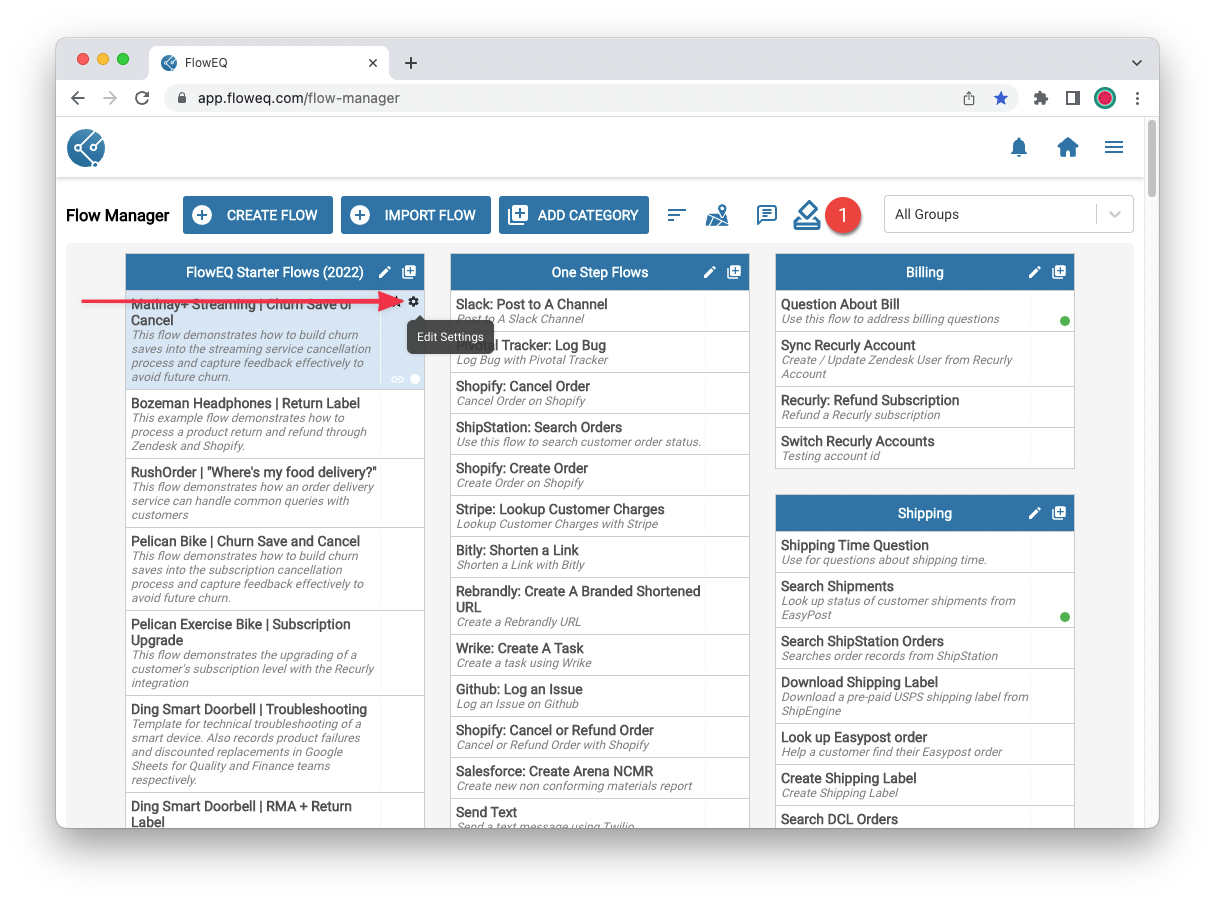
2. Hover over the Flow you wish to duplicate, and click the gear icon in the top right of that Flow to open the **Edit Settings** window.\\
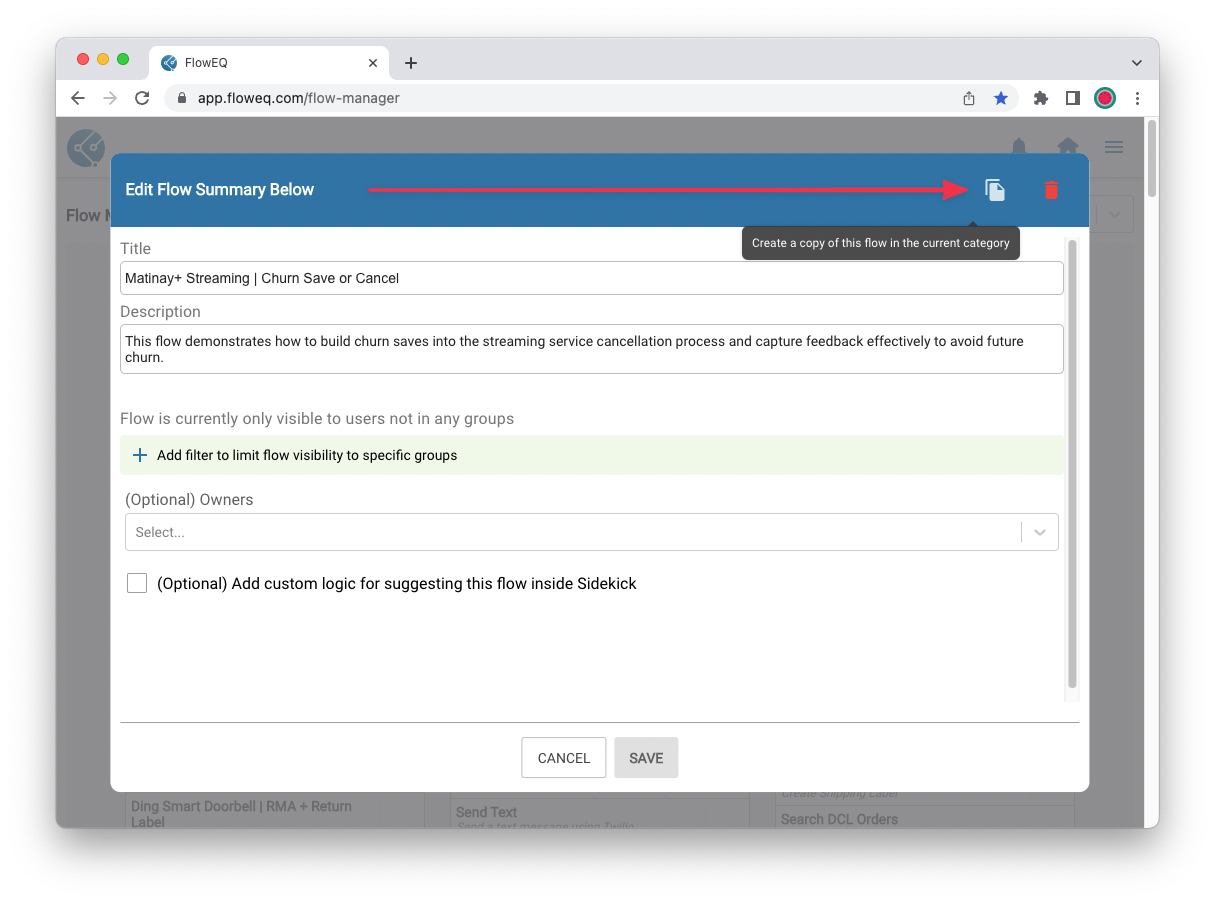
 3. Click the **Copy Flow** button in the top right corner of the popup window's title bar.\\
 4. In the next popup that appears, click **Yes** to duplicate the Flow.
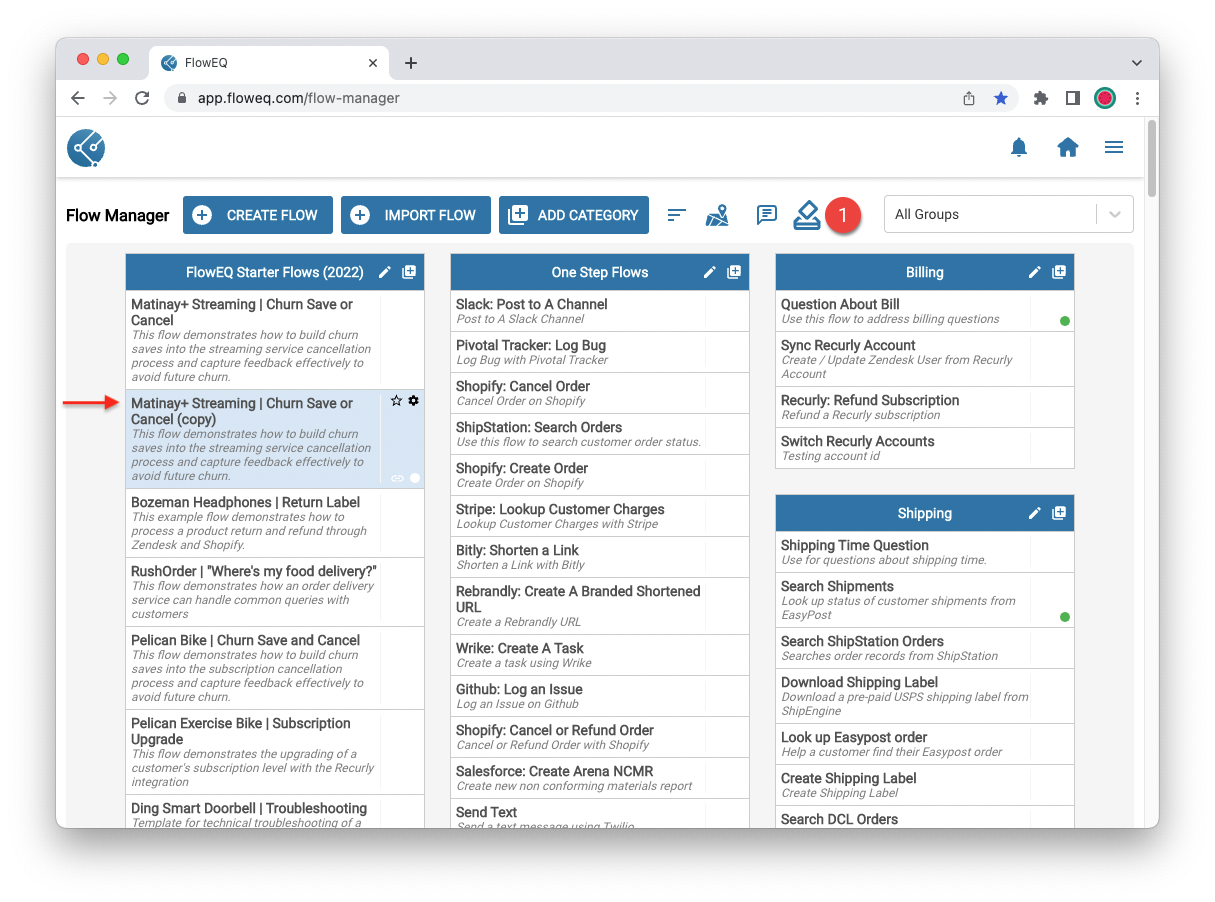
5. The duplicated Flow will now appear in the same category as the original in Flow Manager, but with **(copy)** added to the end of the duplicate Flow's title.\\
4. In the next popup that appears, click **Yes** to duplicate the Flow.
5. The duplicated Flow will now appear in the same category as the original in Flow Manager, but with **(copy)** added to the end of the duplicate Flow's title.\\