> ## Documentation Index
> Fetch the complete documentation index at: https://support.floweq.com/llms.txt
> Use this file to discover all available pages before exploring further.
# Step Templates
> Stop repeating yourself! Use templates to save time and effort when building Flows.
## How to use Saved Step Templates
When you start out building Flows, you may well find yourself using similar steptypes repeatedly. This is especially common when Decision Tree steptype outputs to two different steptypes that only vary slightly.
Rather than rebuild each steptype from scratch each time, you can use Saved Step Templates to keep a personal library of your most go-to steptypes.
### How to create Saved Step templates
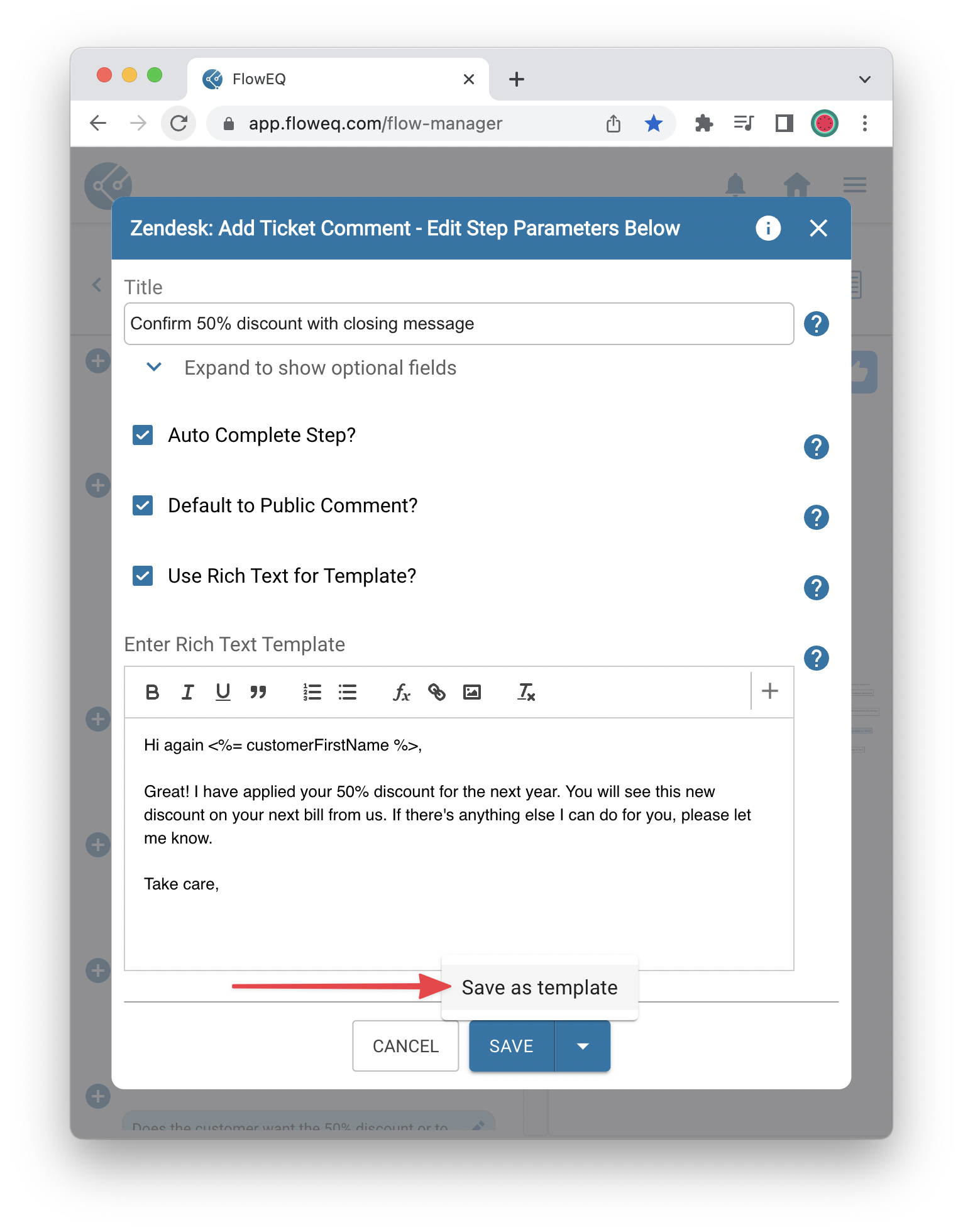
1. After setting up your steptype just so, click on the dropdown next to the Save button, and select **Save as template**
 2. Enter a title and description for your Saved Step Templates, then click **Save**
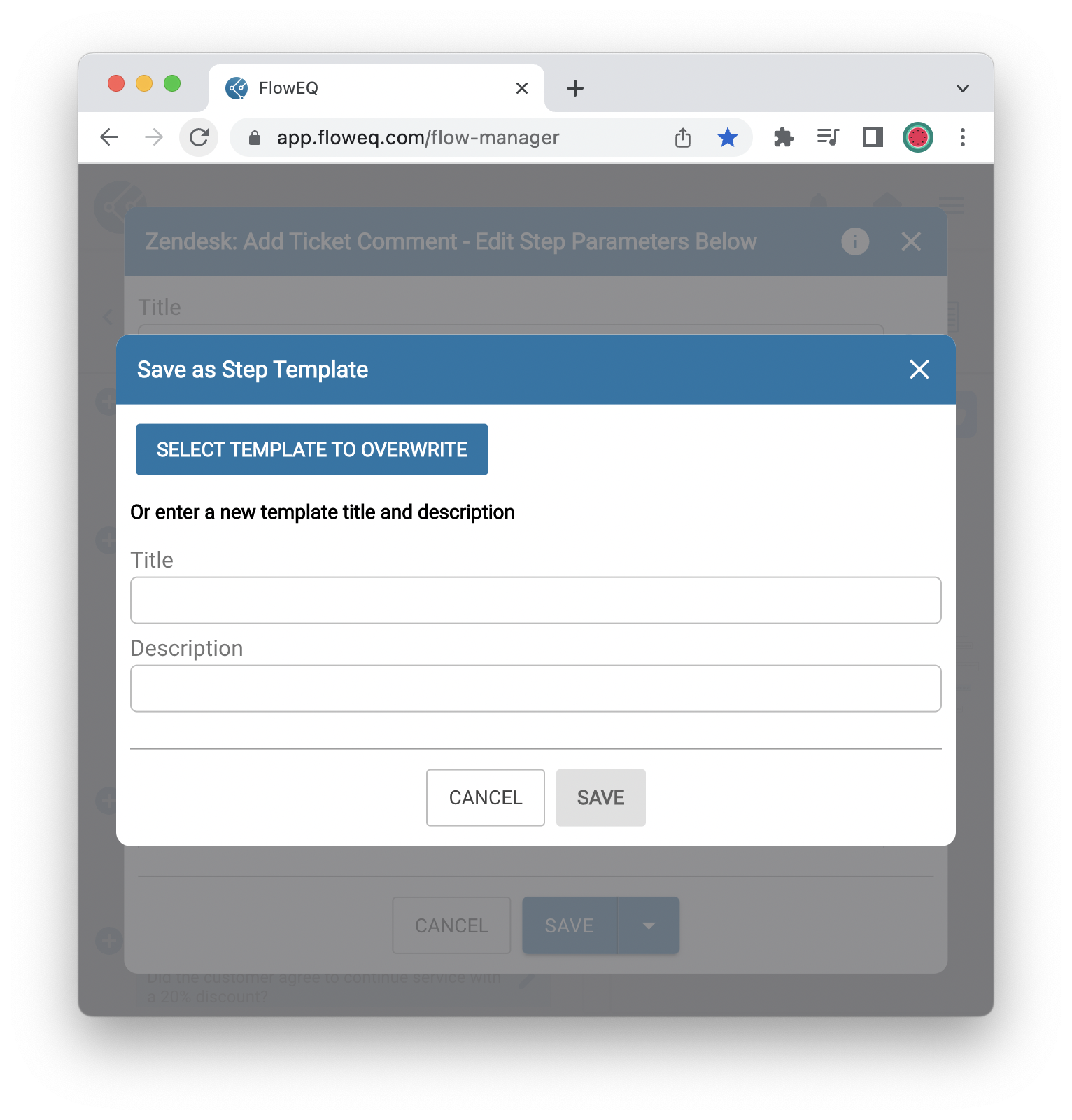
* These are similar to the title and descriptions for each steptype in the **Select a Steptype** window
2. Enter a title and description for your Saved Step Templates, then click **Save**
* These are similar to the title and descriptions for each steptype in the **Select a Steptype** window
 3. Your Saved Step template has been created and can be reused across Flow Builder quickly and easily
### How to reuse Saved Step templates
1. Open Flow Builder and click any button to add a new steptype.
2. Click the **Saved Templates** tab
3. Your Saved Step template has been created and can be reused across Flow Builder quickly and easily
### How to reuse Saved Step templates
1. Open Flow Builder and click any button to add a new steptype.
2. Click the **Saved Templates** tab
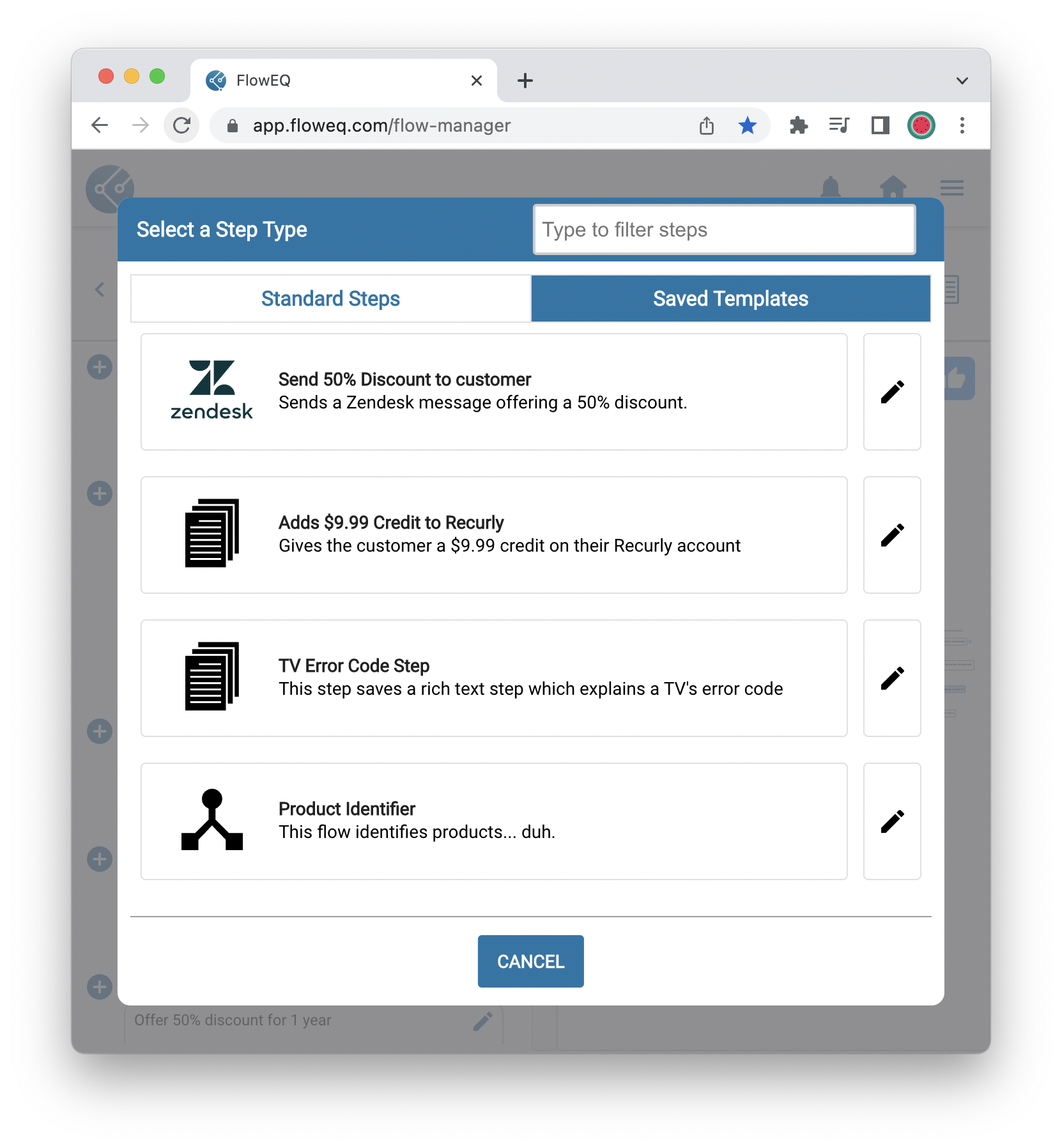 3. Select the Saved Step template you wish to reuse. You can also click the pencil icon to edit an existing template
4. The steptype setup page from your template will appear. You can make any changes you like, or just skip to clicking **Save** to use the template verbatim
3. Select the Saved Step template you wish to reuse. You can also click the pencil icon to edit an existing template
4. The steptype setup page from your template will appear. You can make any changes you like, or just skip to clicking **Save** to use the template verbatim