> ## Documentation Index
> Fetch the complete documentation index at: https://support.floweq.com/llms.txt
> Use this file to discover all available pages before exploring further.
# Team
> Add new users and set user-level permissions
Use this tab to invite new users and manage existing users.
## Download User List
Click this button to download a list of your FlowEQ users as a CSV file.
## Filter by Group
Use this dropdown field to only show team members within a specified group.
## Team Members
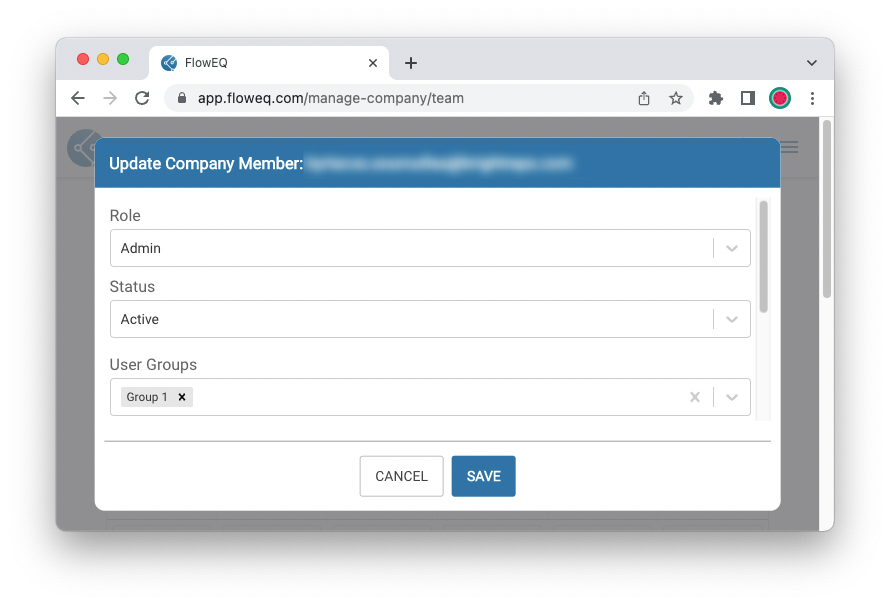
Click the green plus sign to add a new users, or click on an existing user to update them. In either case, a new window will appear where you can set each user's Role, Status, and User Groups.
 ## Role
You can assign one of the following roles to each user to manage their permissions:
* Employee (Default for new users)
* Limited to following Flows in Sidekick and editing their own profile information
* Viewer
* Limited to viewing the Insights beta page
* Contributor
* Everything in the Employee role, plus full access to build and edit Flows, as well as entering credentials in the Integrations Lab to enable new steptypes
* These users are not able to Publish Flows
* Admin
* Everything in the Contributor role, plus managing your team's FlowEQ seats, service plan and billing settings in the Manage Company app.
* Only the admin role can publish updates to a Flow.
## Status
This defines the user's status, which can be either set to Active or Inactive.
* Active
* Indicates a user is able to log in and perform actions based on assigned role privileges
* Active users will count towards your FlowEQ seat count
* Inactive
* Indicates that a user is no longer able to log in.
* This allows admins to deactivate users once they leave the organization while still maintaining a record of their legacy activity and user information.
## User Groups
Use this field to specify which group(s) a particular user is a member of.
## Role
You can assign one of the following roles to each user to manage their permissions:
* Employee (Default for new users)
* Limited to following Flows in Sidekick and editing their own profile information
* Viewer
* Limited to viewing the Insights beta page
* Contributor
* Everything in the Employee role, plus full access to build and edit Flows, as well as entering credentials in the Integrations Lab to enable new steptypes
* These users are not able to Publish Flows
* Admin
* Everything in the Contributor role, plus managing your team's FlowEQ seats, service plan and billing settings in the Manage Company app.
* Only the admin role can publish updates to a Flow.
## Status
This defines the user's status, which can be either set to Active or Inactive.
* Active
* Indicates a user is able to log in and perform actions based on assigned role privileges
* Active users will count towards your FlowEQ seat count
* Inactive
* Indicates that a user is no longer able to log in.
* This allows admins to deactivate users once they leave the organization while still maintaining a record of their legacy activity and user information.
## User Groups
Use this field to specify which group(s) a particular user is a member of.