> ## Documentation Index
> Fetch the complete documentation index at: https://support.floweq.com/llms.txt
> Use this file to discover all available pages before exploring further.
# Salesforce Path Variables
> Use FlowEQ to retrieve field data from an object linked to the current Salesforce object
Salesforce allows you to link objects together. For example, a **Case** object can be linked to an **Account** object. FlowEQ allows you to retrieve field data from the linked object using path variables. Doing so requires knowing the Field Name (not the Field Label) as well as the API Name of the current object and child object you want to get data from.
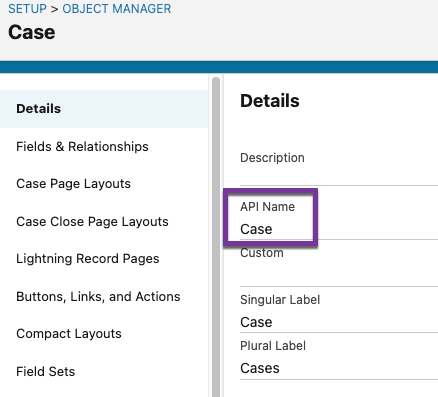
The object API Name can be found in Salesforce by going to **Setup** > **Object Manager** > **\[Object Name]**. The API Name can be found on the **Details** page.
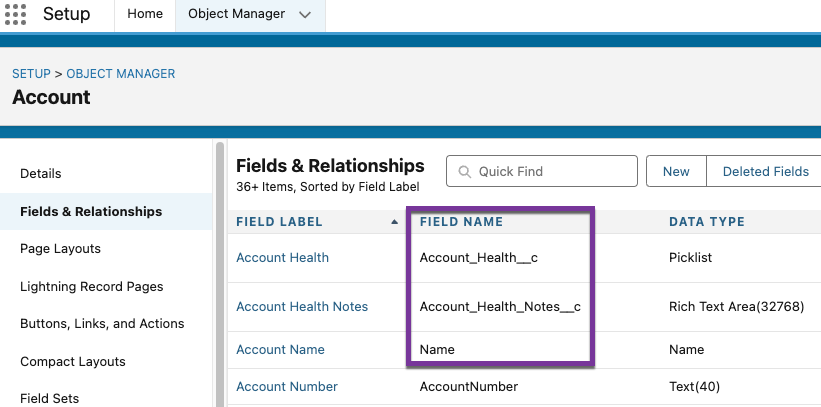
 The field's Field Name can be found by going to **Setup** > **Object Manager** > **\[Object Name]** > **Fields & Relationships**. In this table, there will be a list of all the fields on the object. The **Field Name** is the second column in the table.
 The **Field Name** and **API Name** are case sensitive when using them in FlowEQ. If you are having issues with a path variable, check the spelling and case of the API Name and Field Name.
## Path Variable Syntax
The syntax for a path variable is as follows:
```plaintext theme={null}
<%= floweq.salesforcePath.OBJECT.CHILD_OBJECT.FIELD %>
```
`floweq.salesforcePath` -- this first section tells FlowEQ to treat the rest of the variable as a path variable. This is the same for all path variables.
`OBJECT` -- This is the **API Name** for the current object. This tells FlowEQ what object type you are on and where to start.
`CHILD_OBJECT` -- This is the **API Name** for the child object. This tells FlowEQ the child object you want to retrieve data from. This is the object that is linked to the first object.
`FIELD` -- This is the **Field Name** for the object you want to retrieve data from. This is the field you want to get data from on the child object.
If the `OBJECT` or `CHILD_OBJECT` is a custom object, the API Name will usually show as ending with a `__c`. We've seen some situations where the API Name for the object needs to be changed in FlowEQ from `__c` to `__r`. This is due to how Salesforce handles custom objects.
## Examples
Before jumping into a Flow and trying to add these variables, we recommend using the **Tester** tool in FlowEQ to test the path variables. This will allow you to see if the variable is returning the correct data before adding it to a Flow.
To open the **Tester** tool, go to and object where FlowEQ Sidekick is available, click the Settings () Icon, then select **Tester**.
### One Layer Deep
An example of a path variable that retrieves the `FirstName` field from the `Contact` object linked to the currently `Case` object is as follows:
```plaintext theme={null}
<%= floweq.salesforcePath.Case.Contact.FirstName %>
```
### Two Layers Deep
In situations where you have a child object that is linked to another child object, you can use the following syntax to retrieve data from the second child object. For example, if you want to retrieve the `EndDate` custom field from the `Contracts` custom object linked to the `Contact` object linked to the currently `Case` object, you would use the following syntax:
```plaintext theme={null}
<%= floweq.salesforcePath.Case.Contact.Contracts__r.EndDate__c %>
```
The **Field Name** and **API Name** are case sensitive when using them in FlowEQ. If you are having issues with a path variable, check the spelling and case of the API Name and Field Name.
## Path Variable Syntax
The syntax for a path variable is as follows:
```plaintext theme={null}
<%= floweq.salesforcePath.OBJECT.CHILD_OBJECT.FIELD %>
```
`floweq.salesforcePath` -- this first section tells FlowEQ to treat the rest of the variable as a path variable. This is the same for all path variables.
`OBJECT` -- This is the **API Name** for the current object. This tells FlowEQ what object type you are on and where to start.
`CHILD_OBJECT` -- This is the **API Name** for the child object. This tells FlowEQ the child object you want to retrieve data from. This is the object that is linked to the first object.
`FIELD` -- This is the **Field Name** for the object you want to retrieve data from. This is the field you want to get data from on the child object.
If the `OBJECT` or `CHILD_OBJECT` is a custom object, the API Name will usually show as ending with a `__c`. We've seen some situations where the API Name for the object needs to be changed in FlowEQ from `__c` to `__r`. This is due to how Salesforce handles custom objects.
## Examples
Before jumping into a Flow and trying to add these variables, we recommend using the **Tester** tool in FlowEQ to test the path variables. This will allow you to see if the variable is returning the correct data before adding it to a Flow.
To open the **Tester** tool, go to and object where FlowEQ Sidekick is available, click the Settings () Icon, then select **Tester**.
### One Layer Deep
An example of a path variable that retrieves the `FirstName` field from the `Contact` object linked to the currently `Case` object is as follows:
```plaintext theme={null}
<%= floweq.salesforcePath.Case.Contact.FirstName %>
```
### Two Layers Deep
In situations where you have a child object that is linked to another child object, you can use the following syntax to retrieve data from the second child object. For example, if you want to retrieve the `EndDate` custom field from the `Contracts` custom object linked to the `Contact` object linked to the currently `Case` object, you would use the following syntax:
```plaintext theme={null}
<%= floweq.salesforcePath.Case.Contact.Contracts__r.EndDate__c %>
```