> ## Documentation Index
> Fetch the complete documentation index at: https://support.floweq.com/llms.txt
> Use this file to discover all available pages before exploring further.
# Configuring Airtable
> Perform the initial setup of Airtable and FlowEQ
Airtable is an online platform that allows users to create and share relational databases easily. The platform is designed with a simple, colorful, and user-friendly interface that enables anyone to create a database effortlessly, making it an excellent match for FlowEQ. Once the Airtable/FlowEQ integration is set up, it allows users to use the following steptypes:
## How to set up the Airtable integration
1. If you haven't already, [create an Airtable account](https://airtable.com/signup)
2. With your Airtable account, [click here](https://next.floweq.com/integrations/airtable) or open FlowEQ > Integrations Lab > Airtable > Set Up
3. Click **Connect Airtable**
4. In the pop-up window, click on **Add a base** to select the bases or workspaces you want to integrate with FlowEQ.\\
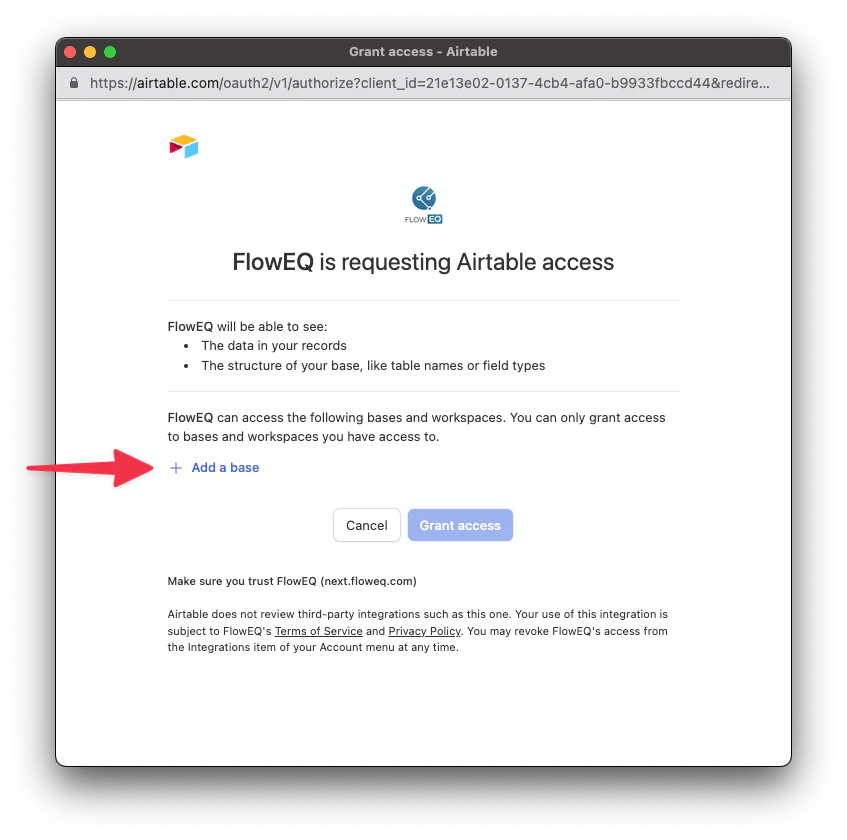 5. After your bases or workspaces have been added, click **Grant Access**
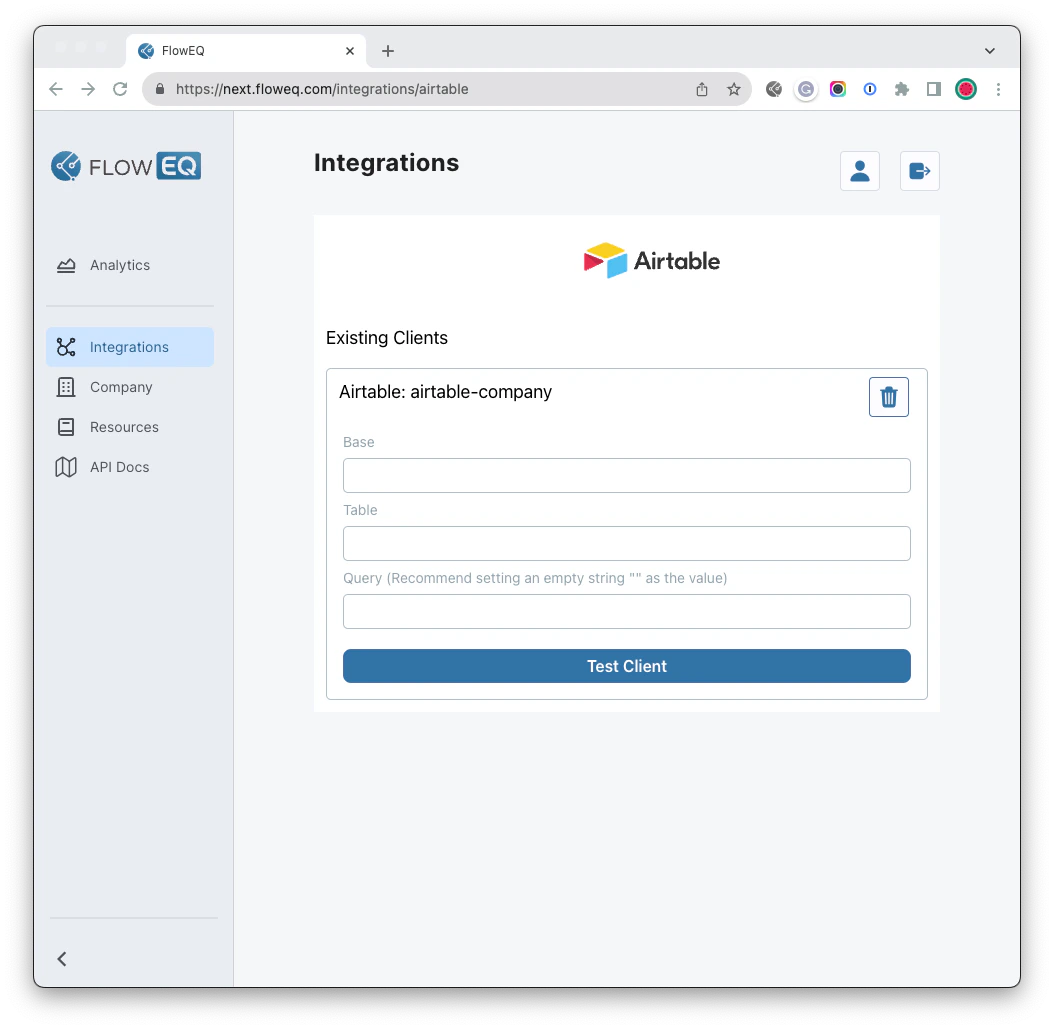
6. With the Airtable integration setup, your FlowEQ window should look like this.\\
5. After your bases or workspaces have been added, click **Grant Access**
6. With the Airtable integration setup, your FlowEQ window should look like this.\\
 ## How to test the Airtable integration
After setting up the Airtable integration, you can test your access to the desired Airtable from this page. To access a specific Airtable, you'll need its Base ID and Table ID.
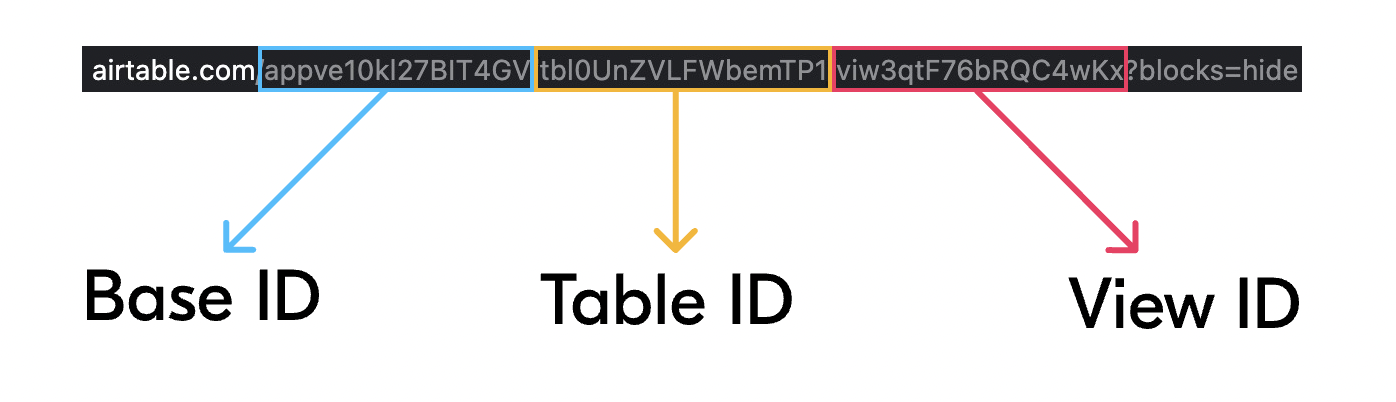
1. To extract Base ID and Table ID from an Airtable table, you must open the table in Airtable and copy two text fragments from the URL. The **Base ID** is highlighted in blue, and the **Table ID** is highlighted in yellow. You won't need the View ID (highlighted in pink) for this test.
## How to test the Airtable integration
After setting up the Airtable integration, you can test your access to the desired Airtable from this page. To access a specific Airtable, you'll need its Base ID and Table ID.
1. To extract Base ID and Table ID from an Airtable table, you must open the table in Airtable and copy two text fragments from the URL. The **Base ID** is highlighted in blue, and the **Table ID** is highlighted in yellow. You won't need the View ID (highlighted in pink) for this test.
 2. After obtaining the Base ID and Table ID, paste them into FlowEQ's corresponding *Base* and *Table* fields. Enter any query into the Query field, using two quotation marks ("") to represent an empty input.
3. After entering your Base ID, Table ID, and Query, click the **Test Client** button. If successful, a green message will appear below saying *Client test successful!*
2. After obtaining the Base ID and Table ID, paste them into FlowEQ's corresponding *Base* and *Table* fields. Enter any query into the Query field, using two quotation marks ("") to represent an empty input.
3. After entering your Base ID, Table ID, and Query, click the **Test Client** button. If successful, a green message will appear below saying *Client test successful!*