> ## Documentation Index
> Fetch the complete documentation index at: https://support.floweq.com/llms.txt
> Use this file to discover all available pages before exploring further.
# Boomerang New Flow: Dynamic
> Using the Dynamic Boomerang step type
A Dynamic Boomerang can send your team to different Flows based on criteria that you define. This is handy if you have a field in your CRM which you can use to automate the decision on which Flow to boomerang into.
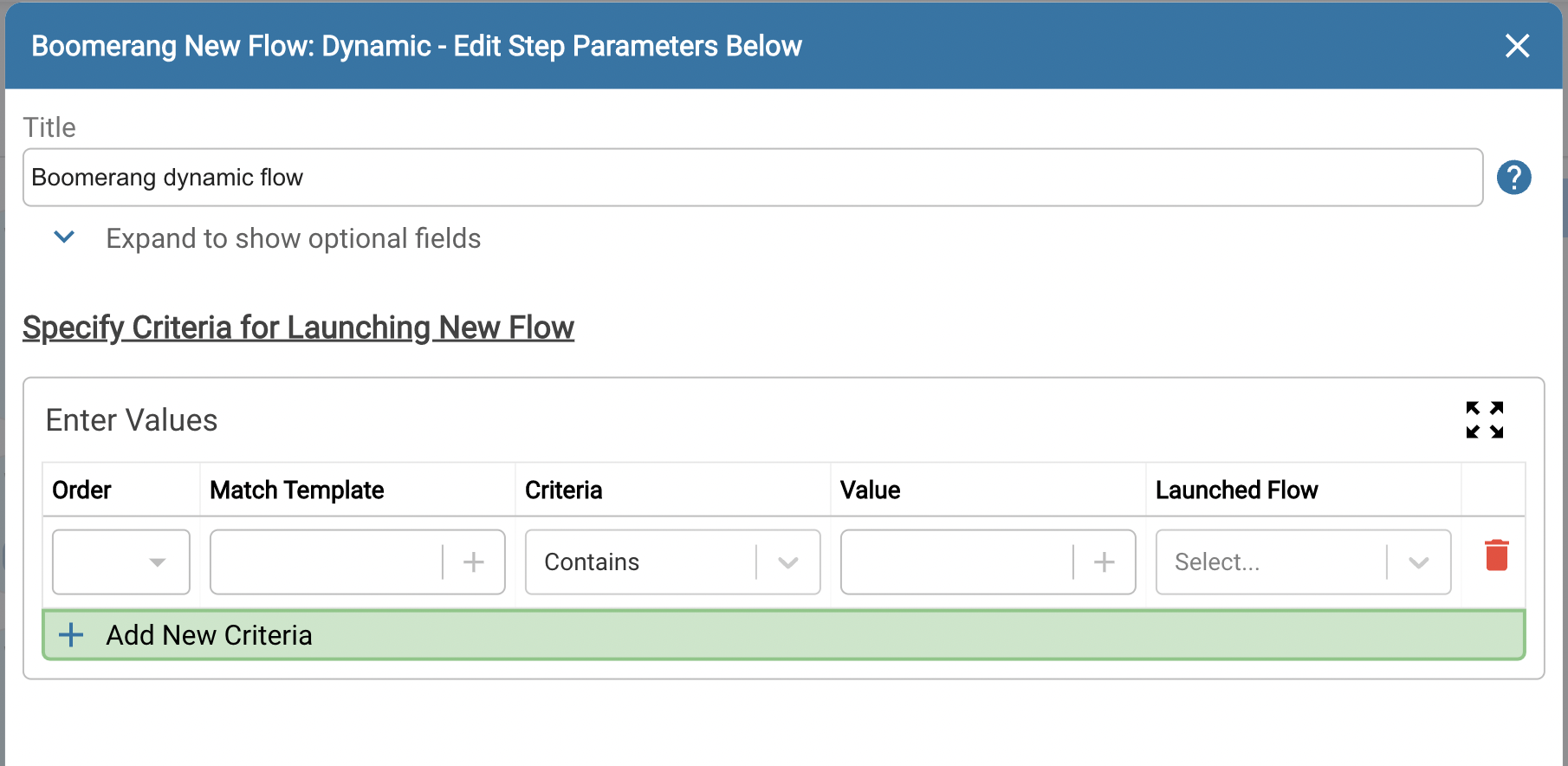 For each Flow to choose from, you'll need to add a new criteria line for each.
## Step Configuration
In addition to the general step configuration options, this step has the following specific options that can be configured.
### Order
Use this field to decide the order of the Flows to boomerang into.
### Match Template
Use this field to pull in the field that contains the information you want to run a condition against. Use the button to select a field in any of your systems connected to FlowEQ.
### Criteria
Select **Equals** or **Contains** from the dropdown. Equals require an exact match, case included. **Contains** does not require an exact match and is not case sensitive.
### Value
Enter the value that should equal or be contained within the Match Template. You can hard code a value here, or again use the button to pull in a detail from your FlowEQ-connected systems.
### Launched Flow
When your Match Template equals or contains your Value, use this dropdown to select which Flow your team should be boomeranged into.
## Example
* Let's say your team has two different products: Hoverboard and E-Bike.
* You already have two Flows that create return shipping labels for these two products:
* *Create Hoverboard Shipping Label*
* *Create E-Bike Shipping Label*
* Your CRM has a ticket field called *Product Name*
* You want to automatically send your team to the right Flow to create the right shipping label based on which product is shown in the *Product Name* field.
In this case, you would configure two different Criteria Rows for each of the different products:
**1st Criteria Row**
* Match Template = Select the *Product Name* field
* Criteria = Equals
* Value = Hoverboard
* Launched Flow = *Create Hoverboard Shipping Label*
**2nd Criteria Row**
* Match Template = Select the *Product Name* field
* Criteria = Equals
* Value = E-Bike
* Launched Flow = *Create E-Bike Shipping Label*
When configured like this, if the Product Name field contains "Hoverboard", the Flow will automatically boomerang your team into the Create Hoverboard Shipping Label Flow. If it says "E-Bike", it will boomerang into the Create E-Bike Shipping Label Flow instead.
For each Flow to choose from, you'll need to add a new criteria line for each.
## Step Configuration
In addition to the general step configuration options, this step has the following specific options that can be configured.
### Order
Use this field to decide the order of the Flows to boomerang into.
### Match Template
Use this field to pull in the field that contains the information you want to run a condition against. Use the button to select a field in any of your systems connected to FlowEQ.
### Criteria
Select **Equals** or **Contains** from the dropdown. Equals require an exact match, case included. **Contains** does not require an exact match and is not case sensitive.
### Value
Enter the value that should equal or be contained within the Match Template. You can hard code a value here, or again use the button to pull in a detail from your FlowEQ-connected systems.
### Launched Flow
When your Match Template equals or contains your Value, use this dropdown to select which Flow your team should be boomeranged into.
## Example
* Let's say your team has two different products: Hoverboard and E-Bike.
* You already have two Flows that create return shipping labels for these two products:
* *Create Hoverboard Shipping Label*
* *Create E-Bike Shipping Label*
* Your CRM has a ticket field called *Product Name*
* You want to automatically send your team to the right Flow to create the right shipping label based on which product is shown in the *Product Name* field.
In this case, you would configure two different Criteria Rows for each of the different products:
**1st Criteria Row**
* Match Template = Select the *Product Name* field
* Criteria = Equals
* Value = Hoverboard
* Launched Flow = *Create Hoverboard Shipping Label*
**2nd Criteria Row**
* Match Template = Select the *Product Name* field
* Criteria = Equals
* Value = E-Bike
* Launched Flow = *Create E-Bike Shipping Label*
When configured like this, if the Product Name field contains "Hoverboard", the Flow will automatically boomerang your team into the Create Hoverboard Shipping Label Flow. If it says "E-Bike", it will boomerang into the Create E-Bike Shipping Label Flow instead.