> ## Documentation Index
> Fetch the complete documentation index at: https://support.floweq.com/llms.txt
> Use this file to discover all available pages before exploring further.
# Configuring ShipStation
> Perform the initial setup of ShipStation and FlowEQ
If you want to use the ShipStation steptypes in your Flows, you'll first need to follow these steps to enable the **ShipStation integration** in FlowEQ.
1. Log into ShipStation
2. In ShipStation, click the gear icon in the top right to open the Settings menu.\\
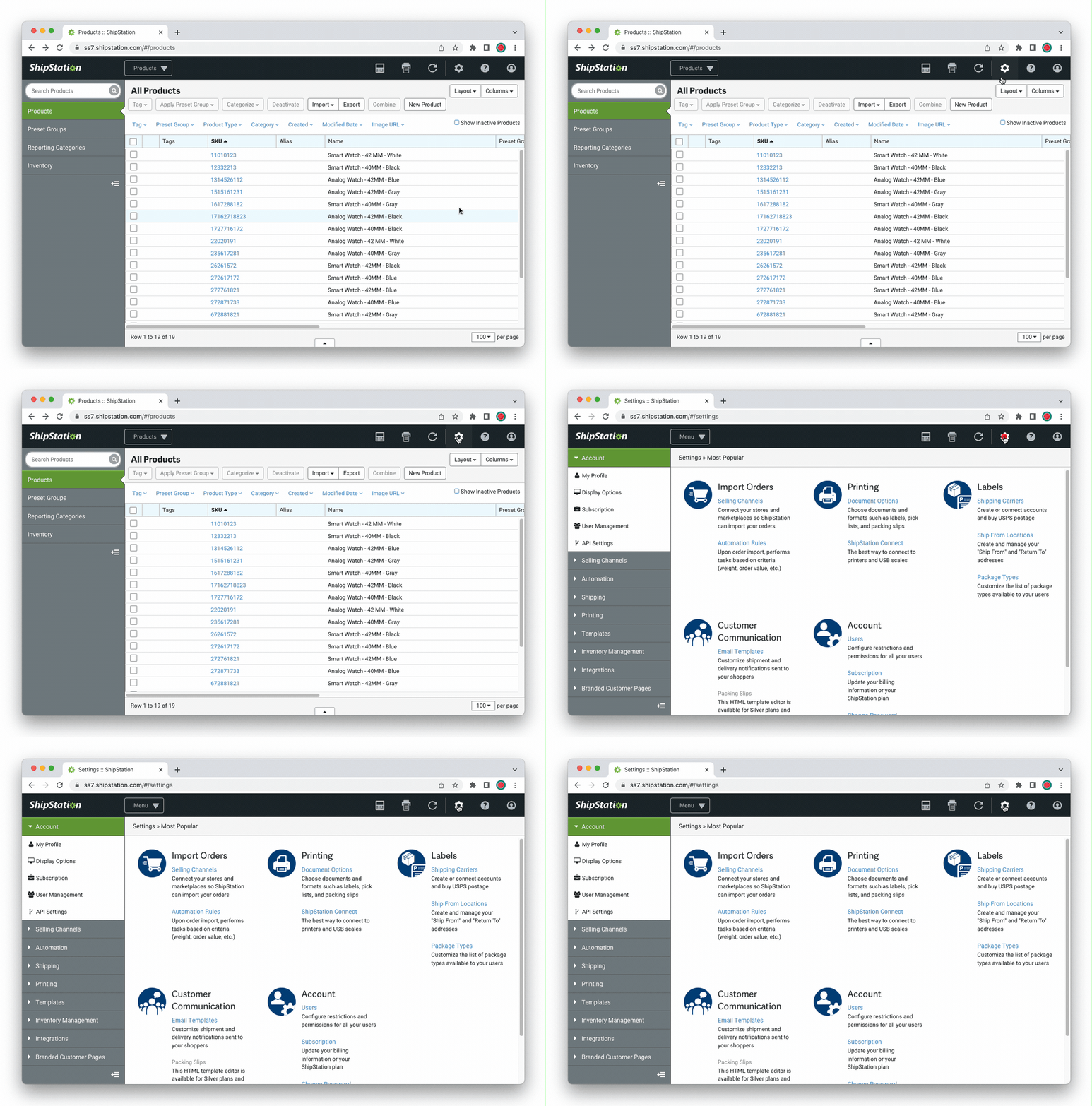 3. In the left rail, click **API Settings**.
4. If you haven't created API keys in ShipStation yet, click the **Generate API Keys** button.
If you only have the option of clicking the **Regenerate API Keys** button - though be warned this will break any apps already using those API keys to connect to ShipStation.
5. Take note of the API Key and Secret codes. You will need them later.
6. [Click here to open the Integrations Lab](https://app.floweq.com/integrations-lab) in FlowEQ.
7. Under ShipStation, click the **Setup** or **Update** button.
8. Enter the **API Key and Secret codes** you noted back in Step 5, then click **Save**.
3. In the left rail, click **API Settings**.
4. If you haven't created API keys in ShipStation yet, click the **Generate API Keys** button.
If you only have the option of clicking the **Regenerate API Keys** button - though be warned this will break any apps already using those API keys to connect to ShipStation.
5. Take note of the API Key and Secret codes. You will need them later.
6. [Click here to open the Integrations Lab](https://app.floweq.com/integrations-lab) in FlowEQ.
7. Under ShipStation, click the **Setup** or **Update** button.
8. Enter the **API Key and Secret codes** you noted back in Step 5, then click **Save**.