
Documentation Index

Fetch the complete documentation index at: https://support.floweq.com/llms.txt

Use this file to discover all available pages before exploring further.

The WooCommerce Find Orders step allows your team to search for and view customer orders in your WooCommerce store directly from FlowEQ. This step can be particularly useful for quickly accessing order information without needing to switch between platforms, saving time and improving efficiency. After selecting an order, numerous variables will be populated, allowing you to use that information in later steps in your Flow. For example, you could use the order information to update a ticket in your CRM, or to trigger a notification to your team.

Step Configuration

In addition to the general step configuration options, this step has the following specific options that can be configured. If only one store is connected to FlowEQ, that store will be searched by default. If multiple stores are connected, you can select which stores you want to search for orders in. This defines which stores to search for customers in. This is because orders are tied to customers, so we first need to find the customer in order to find their orders. If a customer is found in any of the selected stores, all of their orders from those stores will be returned as options for the agent to select from when running the step.
When searching multiple stores, we must make an API request to each individual store. So, if you have a large number of stores connected and selected in this step, it may take longer for the step to load when running the Flow.

Automatically search for customers

Enabling this option will allow FlowEQ to automatically search for customers based on the email address provided in the Email field. The agent will not have an option to manually search for customers when running the step, and will only see the orders that are returned based on the provided email address.

Automatically search for orders if only a single customer is found

Enabling this option will allow FlowEQ to automatically search for orders if only a single customer is returned in the search.

Automatically complete step if only a single order is found

Enabling this option will allow FlowEQ to automatically complete the step if only a single order is found for the selected customer.

Email

Enter the email address of the customer whose orders you want to search for. Remember, you can hit the button to insert a variable to pull data from other fields or other configured integrations.

Running the Step

Once the step has been added to a Flow and configured to your liking, when an agent runs the Flow, they will be able to search for customers based on the provided email address. If one or more customers are found, they will be able to select the correct customer, and then select from a list of that customer’s orders in the selected stores.

Selecting a Customer

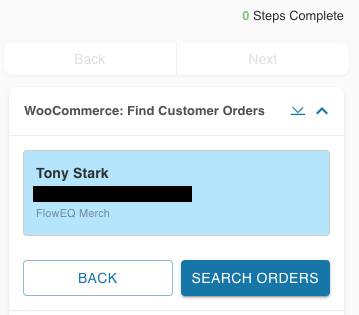
After entering an email address and hitting “Search”, if one or more customers are found, they will be displayed as cards for the agent to select. Each card will display the customer’s name, email address, and the stores they are associated with. WooCommerce Customer Card After clicking the customer that the agent wants to view orders for, they can click “SEARCH ORDERS” to view that customer’s orders.
Selecting an Order

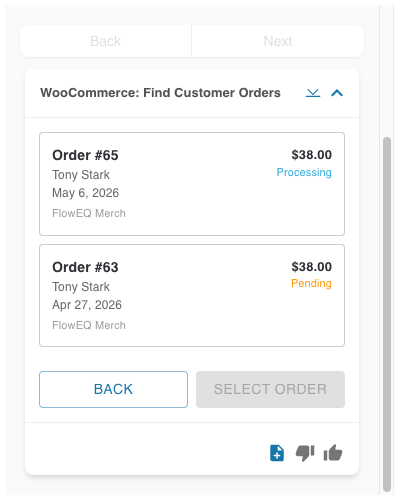
After clicking “SEARCH ORDERS”, if one or more orders are found for the selected customer, the orders will be displayed as cards for the agent to select. Each card will display the order number, order date, order status, the store it is associated with, and the total amount for the order. WooCommerce Order Card After clicking the order that the agent wants to view details for, they can click “SELECT ORDER” to select that order and populate the step’s variables with that order’s information. The step will then be completed, and any subsequent steps in the Flow can use the order information that was pulled in this step.
Variables

After selecting an order, we will populate a number of variables that can be used in later steps in your Flow. These variables will change depending on what data is available for the selected order.

How FlowEQ Variables Work

FlowEQ uses dot notation to navigate through API response data returned by a step. Variables are automatically constructed (they won’t appear in the variable picklist). Each part of the variable breaks down as follows:
PartDescription
<%= and %>Standard FlowEQ variable wrappers
woocommerceThe step name assigned to your WooCommerce step
selectedCustomer / selectedOrder / storeThe top-level key in the response data
first_name, status, etc.The specific field within that object
Example: To access the customer’s first name, you would write:
<%= woocommerce.selectedCustomer.first_name %>
For nested objects (like billing or shipping addresses), you add another level of dot notation:
<%= woocommerce.selectedOrder.billing.address_1 %>

Variable Reference Table

Store

This contains information about the chosen store for the selected order. This is especially helpful when searching across multiple stores, as it allows you to know which store the selected order is from.
NameFlowEQ VariableExample Value
Store Instance / Domain<%= woocommerce.store.instance %>my-wordpress-website.wp.local
Store Name<%= woocommerce.store.name %>FlowEQ Merch

Selected Customer

Information about the selected customer based on the email address entered in the step. This will be populated regardless of whether you have “Automatically search for customers” enabled or not, as long as a customer is found with the provided email address.
NameFlowEQ VariableExample Value
Customer ID<%= woocommerce.selectedCustomer.id %>2
Date Created<%= woocommerce.selectedCustomer.date_created %>2026-04-27T21:40:19
Date Created (GMT)<%= woocommerce.selectedCustomer.date_created_gmt %>2026-04-27T21:40:19
Date Modified<%= woocommerce.selectedCustomer.date_modified %>null
Date Modified (GMT)<%= woocommerce.selectedCustomer.date_modified_gmt %>null
Email Address<%= woocommerce.selectedCustomer.email %>tony@example.com
First Name<%= woocommerce.selectedCustomer.first_name %>Tony
Last Name<%= woocommerce.selectedCustomer.last_name %>Stark
Role<%= woocommerce.selectedCustomer.role %>customer
Username<%= woocommerce.selectedCustomer.username %>tony
Is Paying Customer<%= woocommerce.selectedCustomer.is_paying_customer %>false
Customer — Billing Address
NameFlowEQ VariableExample Value
Billing First Name<%= woocommerce.selectedCustomer.billing.first_name %>Tony
Billing Last Name<%= woocommerce.selectedCustomer.billing.last_name %>Stark
Billing Company<%= woocommerce.selectedCustomer.billing.company %>Stark Industries
Billing Address Line 1<%= woocommerce.selectedCustomer.billing.address_1 %>123 Sesame St.
Billing Address Line 2<%= woocommerce.selectedCustomer.billing.address_2 %>Suite 100
Billing City<%= woocommerce.selectedCustomer.billing.city %>New York
Billing State<%= woocommerce.selectedCustomer.billing.state %>NY
Billing Postcode<%= woocommerce.selectedCustomer.billing.postcode %>10001
Billing Country<%= woocommerce.selectedCustomer.billing.country %>US
Billing Email<%= woocommerce.selectedCustomer.billing.email %>tony@example.com
Billing Phone<%= woocommerce.selectedCustomer.billing.phone %>555-867-5309
Customer — Shipping Address
NameFlowEQ VariableExample Value
Shipping First Name<%= woocommerce.selectedCustomer.shipping.first_name %>Tony
Shipping Last Name<%= woocommerce.selectedCustomer.shipping.last_name %>Stark
Shipping Company<%= woocommerce.selectedCustomer.shipping.company %>Stark Industries
Shipping Address Line 1<%= woocommerce.selectedCustomer.shipping.address_1 %>123 Sesame St.
Shipping Address Line 2<%= woocommerce.selectedCustomer.shipping.address_2 %>Suite 100
Shipping City<%= woocommerce.selectedCustomer.shipping.city %>New York
Shipping State<%= woocommerce.selectedCustomer.shipping.state %>NY
Shipping Postcode<%= woocommerce.selectedCustomer.shipping.postcode %>10001
Shipping Country<%= woocommerce.selectedCustomer.shipping.country %>US
Shipping Phone<%= woocommerce.selectedCustomer.shipping.phone %>555-867-5309

Selected Order

These variables contain information about the chosen order. This is the main object that is returned in this step, and it contains a lot of information about the order, including nested objects for billing and shipping addresses. This is where you can pull most of the information about the order that you want to use in later steps in your Flow.
NameFlowEQ VariableExample Value
Order ID<%= woocommerce.selectedOrder.id %>63
Order Number<%= woocommerce.selectedOrder.number %>63
Parent Order ID<%= woocommerce.selectedOrder.parent_id %>0
Order Status<%= woocommerce.selectedOrder.status %>pending
Currency<%= woocommerce.selectedOrder.currency %>USD
Currency Symbol<%= woocommerce.selectedOrder.currency_symbol %>$
WooCommerce Version<%= woocommerce.selectedOrder.version %>10.7.0
Prices Include Tax<%= woocommerce.selectedOrder.prices_include_tax %>false
Date Created<%= woocommerce.selectedOrder.date_created %>2026-04-27T21:42:11
Date Created (GMT)<%= woocommerce.selectedOrder.date_created_gmt %>2026-04-27T21:42:11
Date Modified<%= woocommerce.selectedOrder.date_modified %>2026-04-27T21:43:13
Date Modified (GMT)<%= woocommerce.selectedOrder.date_modified_gmt %>2026-04-27T21:43:13
Date Completed<%= woocommerce.selectedOrder.date_completed %>null
Date Completed (GMT)<%= woocommerce.selectedOrder.date_completed_gmt %>null
Date Paid<%= woocommerce.selectedOrder.date_paid %>null
Date Paid (GMT)<%= woocommerce.selectedOrder.date_paid_gmt %>null
Discount Total<%= woocommerce.selectedOrder.discount_total %>0.00
Discount Tax<%= woocommerce.selectedOrder.discount_tax %>0.00
Shipping Total<%= woocommerce.selectedOrder.shipping_total %>0.00
Shipping Tax<%= woocommerce.selectedOrder.shipping_tax %>0.00
Cart Tax<%= woocommerce.selectedOrder.cart_tax %>0.00
Order Total<%= woocommerce.selectedOrder.total %>38.00
Total Tax<%= woocommerce.selectedOrder.total_tax %>0.00
Customer ID<%= woocommerce.selectedOrder.customer_id %>2
Order Key<%= woocommerce.selectedOrder.order_key %>wc_order_TCAn0oIgokPHm
Payment Method<%= woocommerce.selectedOrder.payment_method %>cheque
Payment Method Title<%= woocommerce.selectedOrder.payment_method_title %>Check payments
Created Via<%= woocommerce.selectedOrder.created_via %>admin
Customer Note<%= woocommerce.selectedOrder.customer_note %>(empty string)
Is Editable<%= woocommerce.selectedOrder.is_editable %>true
Needs Payment<%= woocommerce.selectedOrder.needs_payment %>true
Needs Processing<%= woocommerce.selectedOrder.needs_processing %>true
Order — Billing Address
NameFlowEQ VariableExample Value
Billing First Name<%= woocommerce.selectedOrder.billing.first_name %>Tony
Billing Last Name<%= woocommerce.selectedOrder.billing.last_name %>Stark
Billing Company<%= woocommerce.selectedOrder.billing.company %>Stark Industries
Billing Address Line 1<%= woocommerce.selectedOrder.billing.address_1 %>123 Sesame St.
Billing Address Line 2<%= woocommerce.selectedOrder.billing.address_2 %>Suite 100
Billing City<%= woocommerce.selectedOrder.billing.city %>New York
Billing State<%= woocommerce.selectedOrder.billing.state %>CA
Billing Postcode<%= woocommerce.selectedOrder.billing.postcode %>11111
Billing Country<%= woocommerce.selectedOrder.billing.country %>US
Billing Email<%= woocommerce.selectedOrder.billing.email %>tony@example.com
Billing Phone<%= woocommerce.selectedOrder.billing.phone %>555-867-5309
Order — Shipping Address
NameFlowEQ VariableExample Value
Shipping First Name<%= woocommerce.selectedOrder.shipping.first_name %>Tony
Shipping Last Name<%= woocommerce.selectedOrder.shipping.last_name %>Stark
Shipping Company<%= woocommerce.selectedOrder.shipping.company %>Stark Industries
Shipping Address Line 1<%= woocommerce.selectedOrder.shipping.address_1 %>123 Sesame St.
Shipping Address Line 2<%= woocommerce.selectedOrder.shipping.address_2 %>Suite 100
Shipping City<%= woocommerce.selectedOrder.shipping.city %>New York
Shipping State<%= woocommerce.selectedOrder.shipping.state %>CA
Shipping Postcode<%= woocommerce.selectedOrder.shipping.postcode %>11111
Shipping Country<%= woocommerce.selectedOrder.shipping.country %>US
Shipping Phone<%= woocommerce.selectedOrder.shipping.phone %>555-867-5309
Last modified on May 7, 2026