

Step Configuration
In addition to the general step configuration options, this step has the following specific options that can be configured.Base IDs and Table IDs in Airtable
When viewing a table in Airtable directly, the URL can be broken down into 3 parts. You will need the Base ID and Table ID to configure this Airtable steptype.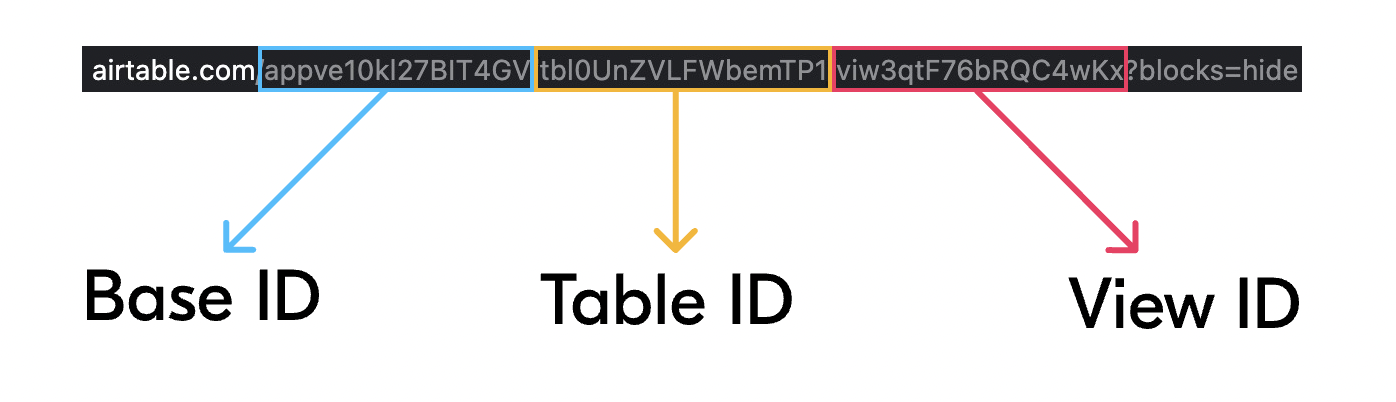
Base
Use this field to set the Base ID for the database to be searched.Table
You can use this field to specify the Table’s ID in Airtable you need to search.Manual Query
This section will only appear after entering the Base and Table information.
Fields to Display in Sidekick
This section will only appear after you’ve properly configured a Base and Table.
Define Search Criteria
You can either use an advanced Airtable Formula to define your search criteria or use the Criteria Logic feature below to build out your search conditions.Airtable Formula
Here you can see a representation of the Airtable search formula as it is being constructed by the Criteria Logic feature below.Criteria Logic
With Criteria Logic, you can construct the logic arguments to search Airtable. This feature works similarly to how logic arguments work in Zendesk’s automations and triggers. In the ALL or ANY conditions, you can click Add New Criteria to create new arguments by filling in the following fields.Field
Select the Airtable field you would like to searchCondition
Select the condition you want to compare against the Airtable field.Value
Enter the value for the preceding field and condition fields to match. Here you can also use FlowEQ variables to pull in information from your CRM or other systems connected to FlowEQ.Run Airtable Query
Click this button to test the Airtable query you have constructed.Airtable Variables
After running the Airtable Search Table Records step, FlowEQ will create several variables you can use in later steps in your Flow. These will have the following format:If your column name has any of the below special characters, they will be replaced with an underscore (-) in the variable name:
/(forward slash).(period)[(left bracket)](right bracket)*(asterisk)`(backtick)